
How Cellarnova works
Cellarnova is your digital wine cellar: photograph the label and the app fills in the name, producer, vintage, market price, scores, drinking window, the range of the estate and a taste profile. This short guide walks you through the main steps. At the top right of the app is the Friends-Menu-info & Co button; in this guide we simply call it the menu.
Installing Cellarnova
On a computer there's nothing to install: open cellarnova.com or simply click the link.
On iPhone and iPad you put Cellarnova on your home screen. From then on it works like a real app.
- Open cellarnova.com in Safari: type the address, click the link or scan the QR code. You arrive at the sign-in screen (picture 1).
- Tap … (the three dots) at the bottom right, then Share (picture 2).
- Tap View More (picture 3).
- Tap Add to Home Screen (picture 4).
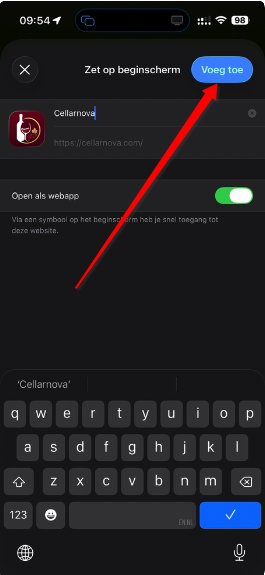
- Tap Add (picture 5). Done: Cellarnova is now on your home screen as an app.
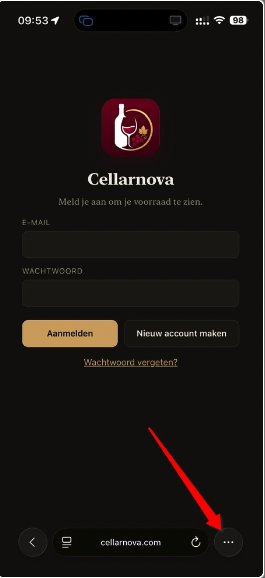
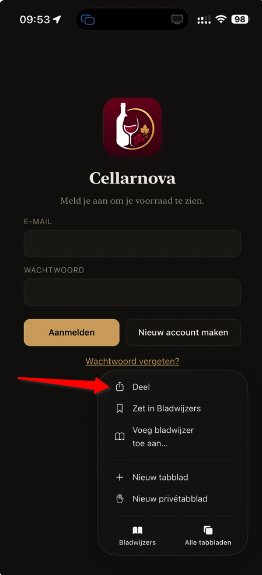
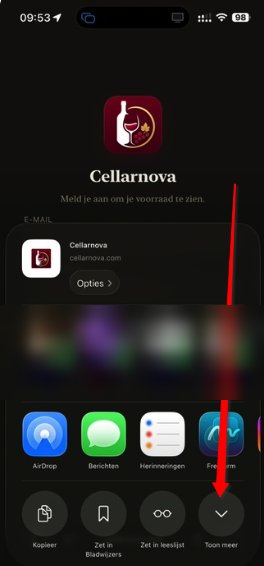
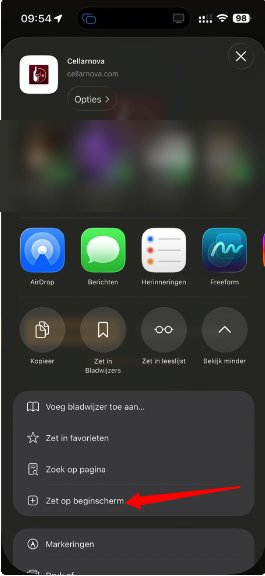
The pictures show an iPhone set to Dutch; the buttons are in the same place.
On Android it works too, in Chrome:
- Open cellarnova.com.
- Tap the three dots at the top right.
- Choose Add to Home screen. If you see Install app, choose that instead.
Cellarnova then appears as an icon among your apps. On a Samsung you can also use Samsung Internet: menu → Add page to → Home screen.
1. Adding a bottle
- Tap + Wine at the top, next to the Menu button.
- Tap the + photo box and take a picture of the front of the label (on your phone you can go straight to the camera). Up to four photos per bottle: the back, a detail and a nice picture of the whole bottle are welcome too. The first photo appears on the card (tap → front under another photo to make that one the first); tap a photo in the list to see it large and swipe sideways for the next one.
- Above that, fill in what the app can't know (quantity, where the bottle will be kept, your own reference) and tap Read label, the small button next to the photos. The bottle is then in your cellar straight away.
- Choose when you want the details. Cellarnova asks you:
- I want to know now — within a minute you'll know the price, the drinking window and the taste profile. This counts as one scan of your monthly allowance.
- Within 15 minutes is fine — we do the work free of charge: it doesn't count on your counter. Usually everything is there within fifteen minutes, sometimes a little later.
- Feel free to put your phone away. As soon as the photos are uploaded, you can simply tap Save and close the screen; if you're uploading a whole series with bulk, tap My photos are complete and close. You don't have to wait for anything. The lookup happens on our server and carries on, even if you lock the screen or close the app. If you choose now, a wine glass fills up on the bottle's card while we're working; allow 30 to 60 seconds. If you choose later, the card calmly shows Later until it's our turn. Once that's gone, the name, vintage, price, drinking window and notes are filled in. Check them with Edit: at the top is what you fill in, below the line what the app looked up. While the glass is filling, you can't edit that bottle, so just wait a moment. If the lookup didn't work, the card shows a red Lookup failed label: open the bottle and tap Read label again.
How should you take the photos? Take no more than three photos per bottle, always in the same order: first the front label, then the back label, and only as a third photo a detail (the neck label, the vintage or the box). Two photos are usually enough; only take the third if something's missing. The back label isn't a minor detail: that's where the alcohol content, the volume, the bottler and often the grapes are. Fill the frame with the label, straight on and without flash: glare on the glass is the main cause of unreadable text. Never put two bottles in one photo.
Photographing a whole series of bottles in a row? Between photos of the same bottle, just keep clicking, 1 to 3 seconds apart. When you move on to a new bottle, pause first for at least 8 seconds, ideally 10: put the bottle away, pick up the next one and only then take the photo. That way two bottles are never mixed up; this was measured on hundreds of photos from a real cellar. If you'd like us to read in your cellar, upload the photos yourself in the app via + Wine → bulk. Use the original photos from your camera roll, not photos forwarded via WhatsApp: WhatsApp shrinks the photos and removes the time they were taken, so the order and the grouping per bottle are lost.
No photo to hand? Manual entry. Next to + photo, tap manual and fill in what you know from the label: at least the producer or the name, and ideally also the vintage, colour, region, country, grapes or alcohol percentage. Tap Search: Cellarnova looks on the web for existing wines that match (10 to 40 seconds) and shows up to thirty. Tap the right wine; the app then looks up the price, the estate and the taste profile, just as after a photo. Only at that point is the international price database used, once, for the wine you picked. If more than thirty wines match, the app asks you to refine your entry. If your wine isn't in the list, choose Use my entry as it is. Searching for that list doesn't count on your counter.
Lists that appear as you type. For country, region and grapes a list appears as soon as you start typing, both in manual entry and in the edit screen: every country in the world in your own language, 2,717 regions and appellations from the official registers, and 857 grape varieties with their common alternative names (feel free to type Shiraz for Syrah, or Spätburgunder for Pinot Noir). If you've already filled in a country, the list only shows the regions of that country. Separate several grapes with a comma.
Capitals, accents and punctuation don't count. In those lists and in your cellar's search bar you can type it the way it sounds: "cote rotie" finds Côte-Rôtie, "gruner" finds Grüner Veltliner and "hawkes" finds Hawke's Bay. You first get what starts with your letters, then what contains a word starting with them, so "montrachet" shows Chassagne-Montrachet as well.
Something went wrong? Try again. If one of the steps fails, the taste profile for example, you get an error message with the button Try again. It redoes only the part that failed: you don't have to fill anything in again and the bottle counts only once on your counter.
Where does the price come from? Next to the market price there's a coloured dot: green means the price comes from the international price database, blue that it was looked up on the web. If you typed the price in yourself, there's no dot. Below the price you can see briefly what it's based on, with the date (for example "4 listings for 2018"). If it's an estimate, or if there's no listing for that vintage, that's stated explicitly; in that case it's worth checking the price yourself and typing in the right one if needed.
The coloured tick next to the wine code. On every bottle card there is a coloured tick ✓ to the right of the wine code. It tells you how far Cellarnova has got with that bottle and has nothing to do with the price: that is the dot next to the market price above. Green: fully checked and translated. Blue: the bottle is there with the main details and we complete them for you free of charge. Yellow: the text is there, the translation into your language is still being made, usually within the quarter of an hour. Blue and yellow are therefore not errors; you do not have to do anything. If the tick blinks orange, the bottle is still not fully checked after 48 hours; we sort that out too. Tap the tick and you read what it means at that moment.
Several wines with the same name. If the international price database finds several wines with that name, the bottle is saved with the price found on the web, and an orange box appears in the edit screen. Add to the name (for example the cuvée, the vineyard or the range) and tap Search price again, or tap one of the estate's wines listed below it. If the price database finds the wine, the price and score are filled in; then tap Save. This doesn't count as a new bottle on your counter.
Where is the bottle? First "Not yet decided". A new bottle (after a scan or a manual entry) starts with Where the bottle is set to Not yet decided until you choose a place yourself: wine cabinet, cellar, restaurant, friends or research. That way the app doesn't make up a place and your layout stays right. As long as the place isn't decided, the bottle doesn't count towards the bottles at home or the value at the top. You'll find those bottles under Where? → Not yet decided (chapter 2).
Price details. Under every bottle there's a Price details button. It shows where the price comes from and how recent it is, the lowest and highest listing (when known), why wine prices vary so much, which figure to use for buying, selling or insuring, and the bottle's price history. A Where to buy? button only appears when a wine merchant who is a Cellarnova member offers that wine; until then, there's no button. The full explanation is on the How is the price put together? page of our website.
Your own purchase price. In Price details, under Your purchase, enter what you paid. One amount is enough, excluding or including VAT: the other is calculated with the VAT rate you choose, because that differs from country to country. Under Where did you buy it? you note where you bought the bottle, for example a shop, an auction or the estate. The app then shows the difference with today's value, in euros and as a percentage, per bottle and for all your bottles of that wine. If you don't enter a purchase date, Cellarnova uses the day the bottle arrived in your cellar (the day of the scan or of the read-in). If you bought the bottle earlier, enter the date yourself: that way the “since” percentage matches reality.
The wine code. Every wine gets a fixed eight-character code, for example RD16 K7QM: two letters for the colour (RD red, WI white, RS rosé, BB sparkling, SK sake, SP spirits, RE other), the last two digits of the vintage (NV without a vintage) and four characters that belong to that one wine. The same wine has the same code for everyone. You'll see it in small print on the card, under More details and on the PDF, and you can search for it in the search bar. It lets you name a bottle unambiguously to us or to a friend without typing the full name and vintage. If you change the producer, the name or the vintage, the code changes too, because it's then a different wine. Later the code will also be used for a rack label or a QR code.
2. Filtering and sorting the list
Above your list there are two boxes. In Filter by you choose what you want to see: colour, country, region and grape variety. Each menu only shows what's actually in your cellar, with the number of bottles next to it, and the regions follow the country you picked. In Sort by you choose the drinking window, where the bottle is and the order of the list. Below you'll find what each choice does.
- Colour: all colours, white, rosé, red, sparkling (champagne, crémant, prosecco, cava and other sparkling wine), sake, spirits or other (undetermined: port, sherry, cider, alcohol-free and anything the app couldn't classify with certainty).
- Where?: tap the button and choose everywhere, wine cabinet, cellar, restaurant, friends or research. At the bottom you'll find Out of stock: this is where the wines with a quantity of 0 are kept; they no longer appear in any other list or drinking window. If you tap wine cabinet or cellar, their twenty locations appear (racks, levels, cases, fridge…), which you name yourself via the menu → Name locations. Choose "Wine cabinet (all)" for the whole cabinet, or a single location for that rack alone. The names appear on the cards and in the PDFs. Only the cabinet and the cellar count as "bottles at home". Choose Not yet decided to see in one tap the bottles you haven't given a place yet.
- Drinking window: within the drinking window (ready to drink now), final year, last 3 months, in 2–4 years, can still age, or not ready yet (the window hasn't opened).
- Sort: value, name, vintage, drinking window or most recently added.
- Search: type a name, region, grape or dish (for example "chicken") and the list filters straight away, the taste profile included. Capitals, accents and punctuation don't count: "cote rotie" finds Côte-Rôtie too.
- The Value button at the top right shows or hides the number of bottles at home, the total value and the number of bottles that should be drunk now. If you entered a purchase price for your bottles (with the purchase date, if you like, in the edit screen), you'll also see there how many per cent your cellar has risen or fallen in value since you bought them; on each bottle you'll find the same percentage below the market price. From the second day onwards an extra box appears showing how much the value of the cabinet and the cellar has changed since the first measurement; bottles you add and take out are included in that.
- Under More details on a bottle you'll find the date on which you added it and the price history: every time the market price changes, the new price is stored with its date, so you can see how the bottle evolves in value. Prices are kept from 16 September 2026 onwards.
3. Taking bottles out and putting them back
Every card has a − and a + button. With each bottle you take out, the quantity and the value adjust immediately. At 0 the wine disappears from the lists, but it's kept under Where? → Out of stock, so you can buy it again later (tap + and it's back); via Edit → Delete you remove it for good.
BLOCK: do not drink or touch. A bottle that still needs to age, or that is being kept for a special occasion, can be marked via Edit → BLOCK, with the reason if you wish (for example "for Sofie's wedding"). The card then gets a striking blue border and the short label BLOCK, and anyone tapping − has to confirm first. The marking also appears on the PDF and isn't passed on when you share the bottle with a friend.
4. Drinking window
The app watches the drinking window itself, based on "drink until":
- Can still age as long as the last good year is more than four years away.
- In 2–4 years when it comes closer.
- Drink now in orange from 1 January of the last good year.
- Drink now in red during the last three months of that year, with the message "N months left!", and after that "Past its best".
5. More details per bottle
Tap More details under a card for the sommelier's comments, the range of the estate ("The estate and its wines"), the taste profile in words and in figures, and the photos in large format. The estate's range is looked up automatically; you no longer need to tap a button for it.
Reviews by Cellarnova members. At the far right of each bottle's button bar you'll find Reviews. There you can read what other members wrote about that wine, and write your own review of up to 60 words for a bottle in your own cellar. All members see your text, with your name. You write one review per wine and can always change or delete it. Reviews belong to the wine, not to your bottle: anyone who has the same wine sees the same reviews. Write about the wine, not about yourself or your business: e-mail addresses, web addresses, phone numbers and offensive language are refused. If you find someone else's review inappropriate, tap Report and give a reason if you like. After three reports a review disappears automatically, and Cellarnova checks it.
6. Making and sharing a PDF
- PDF under a card: that one wine as a fact sheet, with photos.
- PDF of the whole selection at the top: a PDF of everything your filters are showing at that moment, with or without detail.
- Menu → Full stock as PDF: everything, grouped by colour with a heading and a total per colour. You choose the order within each colour (value, estate, name, vintage, drinking window, score, country and region, location, number of bottles, most recently added), whether the value may be shown (prices, totals and the total value in the heading) and whether you want the detail. The app remembers your choice.
During the trial period you can make up to ten single-bottle fact sheets (the PDF button under a card). A PDF of a selection or of your whole stock comes with a licence: if you tap PDF of the whole selection or Whole stock as PDF during the trial, a window explains this, shows how many of the ten fact sheets you've used and how to request a licence. With a current licence there's no limit. Once it has expired, you can't make a PDF any more (chapter 9).
The PDF first appears in the app, so you can check it over. With Share… you open the share menu of your device (WhatsApp, Mail, AirDrop, Files…); with Save you put it in Files or Downloads. On a computer there's only Download. Your name is at the top, the details of Cellarnova at the bottom.
Sharing via WhatsApp on an iPad: open WhatsApp on the iPad once from the Home Screen first (and link it to your phone if needed via WhatsApp → Settings → Linked devices). Otherwise WhatsApp refuses the file with the message "Open WhatsApp from the Home Screen".
7. Backup
Via the menu you save a backup (a file) of all your data on your device, and you can put it back if ever you need to. Your data is safe in any case in Cellarnova's secure database; the backup is an extra safeguard for yourself.
8. Signing in, password and account
- New account: Create new account on the sign-in screen; fill in your name, address, telephone, e-mail and a password of at least 8 characters, confirm that you are 18 or older and tick that you've read the terms of use (you can find them again later via Menu → Terms of use). You'll receive an e-mail from Cellarnova (sender hallo@cellarnova.com) to confirm your e-mail address. No e-mail? Have a look in your Junk folder. Also choose a username: it's not for signing in, only for friends to find you. Don't use an e-mail address, but a name that is recognisable for you or your business. After creating the account, Check your inbox appears: tap the link in the e-mail, Cellarnova opens and your account is ready.
- You can sign in with your e-mail address or with your customer number (for example CNH-1008; capitals and the hyphen don't matter), always with your usual password. Your customer number is under Menu → My details, photo and other currencies. After five wrong attempts with a customer number you'll need to wait a quarter of an hour, or sign in with your e-mail address. For Forgot password you need your e-mail address.
- Next to every password field there's Show: tap it to read what you typed, and Hide to hide it again.
- Forgotten password: tap the link at the bottom of the sign-in screen; you'll receive an e-mail with a link to choose a new password.
- Via the menu you'll also find Plans and prices, About Cellarnova and the explanation How is the price put together? They open in the app itself: close them and you're back where you were.
- The app refreshes itself every hour between 7 am and 9 pm, so you see the latest prices and explanations without having to do anything.
- You sign out via the menu.
Two-step verification (optional). If you'd like extra protection for your account, turn on two-step verification under Menu → My details, photo and other currencies. You need an authenticator app on your phone: a free app that shows a new six-digit code every thirty seconds, such as Google Authenticator, Microsoft Authenticator or the password app that's already on your phone. You scan the QR code that Cellarnova shows with that app, and type the six digits once to confirm. From then on Cellarnova asks for those six digits every time you sign in, on top of your password; as long as you stay signed in, you won't notice anything. Important: keep the key shown under the QR code, or scan the code with a second device as well. If you lose your phone and haven't kept anything, you won't be able to get in yourself and will have to ask Cellarnova to turn two-step verification off, via hallo@cellarnova.com.
8b. Family: up to 4 people, one cellar
With the family plan, up to 4 people use the same cellar and the same subscription, each with their own login (their own e-mail address and password). Never share your password.
- The main user opens Menu → Family, fills in a member's e-mail address, chooses the permission and taps Invite. Pass the link on via WhatsApp, e-mail or the share menu.
- The member opens the link and signs in, or creates an account, with exactly that e-mail address. The family cellar then opens by itself.
- Members see the whole cellar with the current price per bottle and the stock, but no purchase prices and no totals.
- For each member the main user chooses: view only, or view and adjust stock (taking bottles out and putting them back). Adding, scanning, editing, deleting and sharing wines is done by the main user alone.
- A family member has no cellar of their own and can't share bottles with friends. Anyone who leaves the family gets their own earlier cellar back.
- Under More details on each bottle you can see who took a bottle out or put one back, and when.
- No family plan yet? Under Menu → Family you can request one directly via WhatsApp or e-mail.
8c. Number of devices
One login works on 2 devices at the same time, for example your phone and your computer. If you sign in on a third device, the device that has been unused the longest is signed out; a message appears there. Please note: the app on your Home Screen and the same site in Safari count as two devices.
9. Trial period and licence
A new account automatically gets a trial period of 30 days. After that a licence is needed (per year), which Cellarnova grants. From 60 days before the end, a counter at the top shows how many days you have left. If your trial period or licence expires, your cellar stays visible for another 30 days, read-only: you can no longer add, edit, count up or down, share, put in a PDF or look up wines. After that your cellar becomes inactive: you no longer see it, but all your data is kept and is back straight away as soon as you renew. You can request a follow-on licence or renewal by e-mail to hallo@cellarnova.com, or with a single tap via the "Help via WhatsApp" button at the bottom of this page.
PDF during the trial period: up to ten single-bottle fact sheets; no PDF of a selection or of your whole stock. Only PDFs that were actually made count. That's plenty to get to know the app; a PDF of your whole cellar comes with a licence (chapter 6).
Looking things up with AI is limited. During the trial period all functions work, with a limit of 30 new scans (bottles the app has to look up). You can always see where you stand right at the top of the main page, in the bar above the title: 12/30 means 12 of the 30 agreed new scans used, with the end date next to it. The bar turns orange when you are close to your number and red when you reach it; tap it for the explanation.
Only new bottles count: bottles for which the app really had to look up information. If a wine is already in the shared memory (because you or another user had it looked up earlier), you can scan it as often as you like without the counter running. That applies to every member, friend or not: with every scan the app checks for itself whether the bottle is already known. So add your friends first and share (chapter 10): if you're in a wine club, one member scans the bottle and all the others put it in their cellar for free. Ten friends with 60 new bottles each per month discover 600 bottles together this way. A bottle you take over from a friend doesn't count either. Large quantities, such as your whole stock, we'll read in for you free of charge, also during your trial period: upload the photos yourself via + Wine → bulk (up to 1000 bottles at a time), and we'll put them in your cellar, without any of it counting against your counter. Once the number has been reached, the label is still read, but the price, the estate and the taste profile are no longer looked up; you then fill them in yourself or request a new period or a higher number via the "Help via WhatsApp" button or by e-mail to hallo@cellarnova.com (the address is in the message itself too, ready to tap and to copy).
10. Friends and sharing bottles
Via the menu → Friends and sharing you build a circle of friends and share bottles. First you choose a username under My details, photo and other currencies (at most two words, e.g. "jo brugge" or "jo.brugge"): that's what you give to friends so they can find you. There are three ways to add a friend: typing in their username or their name (if they have no username, the app searches on their name; type at least three letters and choose from the list), picking them from your contacts (on a smartphone) or typing in their telephone number. If they're already a member, you send a friend request that they have to confirm; if they're not a member yet, WhatsApp opens with a ready-made invitation and your invitation link. Anyone registering via that link automatically becomes your friend. If that friend then takes out a paid licence, you get an extra month of Cellarnova (point 4b of the terms of use). You can also copy the link yourself or pass it on via WhatsApp. You normally already choose your username (username) when you create your account; it's not an e-mail address and isn't used for signing in.
Sharing: every bottle has a Share button; after adding a new bottle it's offered to you straight away as well. You tick the friends (the app remembers your last choice) and type a short message if you like. Only the information about the wine is shared, with today's value: the photos of the bottle, the market price, the estate and the taste profile. What is not shared: your quantity, the place, the rack space, your own reference, your purchase details, the BLOCK marking and the photos that are not of the bottle — a cosy table photo with friends beside that wine therefore stays private.
Which photos stay private? While reading your photos, Cellarnova sees for itself whether a photo shows the bottle or something else (people at the table, your cellar, a landscape) and immediately sets that second kind to private. You can always change it yourself: open the bottle with Edit and tap the lock in the corner of a photo. A closed lock means: this photo stays in your cellar. The first photo — the front of the label — is always shared, because it appears on the card.
Receiving: a red dot on the menu means there's something new. Under From friends you will see the bottles that have been shared. "Put in my cellar" turns it into a bottle in your own list (with the photos), placed at Not yet decided: you fill in the quantity and put it wherever you like; "Keep as a tip" keeps it in the list without adding it. Taking over a bottle from a friend doesn't use up a lookup: it doesn't count towards your number. You receive an e-mail with every shared bottle; you can switch that off under My details, photo and other currencies.
10b. For a business: Cellarnova Resto and Pro
This chapter is for restaurants (Cellarnova Resto) and wine merchants (Cellarnova Pro). If you use Cellarnova for your own cellar at home, you don't need it.
Three levels in a business. Everyone gets their own login, with their own e-mail address and password. The owner invites the others via the menu → Team. The log shows who changed what.
- Owner (2 logins): can do everything, and is the only one who sets selling prices, deletes bottles and manages the team.
- Manager (2 logins): adds, scans and edits bottles, sees and enters purchase prices, views the totals and the log, and counts stock. A manager doesn't delete bottles or set selling prices.
- Staff member (4 logins): views the cellar with the selling prices, takes bottles out, puts them back and counts stock. A staff member doesn't see purchase prices or totals and doesn't add anything.
A team member doesn't have their own cellar and can't share bottles with friends. If a team member would also like their own cellar at home, they use a different e-mail address for it.
Selling prices and margin. A bottle's edit screen has a Sales in your business box: the selling price per bottle and per glass (including VAT), the number of glasses per bottle and the section on the wine list. The app works out the margin against your purchase price, per bottle excluding VAT and as a percentage.
Scanning a purchase invoice. Next to + photo and manual there's a third button, invoice. Choose Take or choose a photo (up to four pages) or Upload a PDF. The app reads the date, the supplier with address and contact details, the quantities and the prices, with or without VAT. You then choose for each line which bottle it belongs to; new wines are looked up and missing details are filled in. The invoice date becomes the purchase date. If the invoice doesn't clearly say whether the prices include VAT, the app warns you.
The wine list for your guests. Via the menu → Wine list for guests you create a web page with your business's logo and the selling prices. Your guests filter by colour, taste profile, grape, vintage and goes with fish, meat, game or spicy food. Only bottles that are in stock and for which you ticked On the wine list for guests appear; purchase prices, quantities and locations never do. The owner sets the address and switches the list on or off.
New bottles: Cellarnova Resto and Cellarnova Pro each have 50 new bottles a month that the app looks up for you.
11. Your details
Via the menu → My details, photo and other currencies you change your name, address and telephone number, and you can add a photo of yourself (only you and the administrator see it). We use your details only to let you know about updates to the app. We never use them for marketing and we never pass them on to third parties. Everything about that, and about licences, payment and ending your subscription, is set out in the terms of use (menu). That's also where your customer number is shown (for example CNH-1004), which you also see at the top of the menu: please mention it when you contact us or make a payment.
Second currency: under Menu → My details, photo and other currencies you can choose a second currency alongside the euro. Everywhere a price appears — on the card, in the details, in the totals, in the PDF and on a shared bottle — the conversion is shown next to it. The prices themselves always stay in euro; the rates are updated every day. You can enter a purchase price in your own currency and Cellarnova converts it at that moment's rate.
Language: Cellarnova is available in Dutch, English, French, Italian and Spanish. You choose the language when you create your account; you can switch later under Menu → My details, photo and other currencies. The explanations for your bottles (summary, description, taste profile, estate) are prepared in all languages in advance, so after switching they appear straight away in the new language. For a new bottle it can take a few minutes before the translation is ready. Only the Dutch text of the terms of use is binding; the translations are there to help you understand them.